
NADRA ID Card Picture Change Online in 2026: New Update
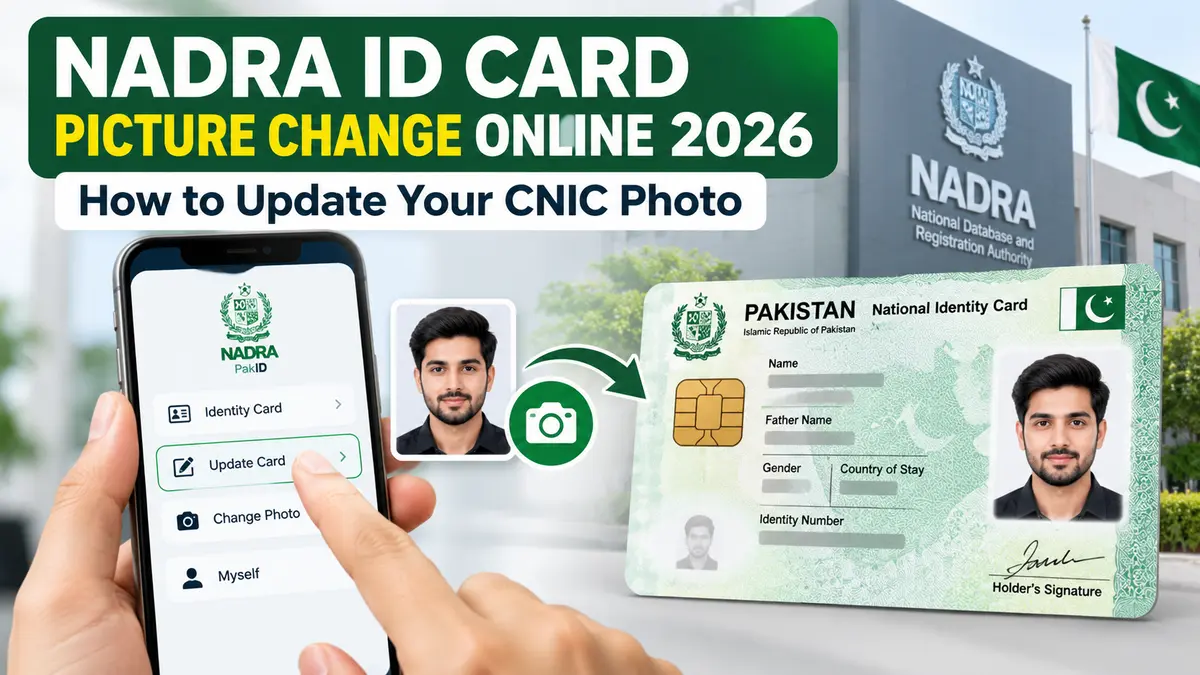
NADRA ID card picture change online is now easier for Pakistani citizens through the official PakID mobile application. In guidance reported on October 12, 2026, the National Database and Registration Authority (NADRA) explained how citizens can request changes to their Computerized National Identity Card (CNIC) photographs without visiting a registration centre simply to submit an application.
This service can help people whose CNIC photographs are outdated, unclear or no longer reflect their current appearance. Applicants can use their smartphones to access the relevant identity card service, follow the photo requirements and submit their requests digitally.
Quick Answer: To change your CNIC picture online in Pakistan, open the NADRA PakID app and log in. Select “Identity Card,” choose “Myself” or “My Blood Relatives,” and tap “Update Card.” Follow the photo update instructions, complete the required verification and submit your application. NADRA may request additional verification in some cases.

NADRA’s Latest CNIC Picture Change Update in October 2026
On October 12, 2026, Pakistani news outlets reported NADRA’s guidance explaining how citizens can modify their CNIC photographs and certain other details through PakID.
For photograph changes, the main convenience is that eligible applicants can begin the modification process from home.
NADRA’s official PakID platform supports live photo capture, biometric verification, document submission, online payments and application tracking. These features help citizens complete various identity card services through their mobile phones.
This does not mean that NADRA has removed all requirements for physical verification. Some applications may still require applicants to visit a NADRA Registration Centre.
Who Can Change Their NADRA ID Card Picture Online?
PakID supports CNIC modification applications for eligible citizens who already hold a Pakistani identity card.
A photograph update may be useful in several situations.
1. Your CNIC Photograph Is Outdated
People who received their identity cards several years ago may look different from their existing CNIC pictures.
An updated photograph can help make identification easier when using the CNIC for banking, official verification or other services.
2. Your Existing Picture Is Unclear
A photograph may appear unclear because of poor lighting, image quality or other issues.
If the picture creates identification difficulties, the cardholder may consider requesting a modification.
3. Your Appearance Has Changed Significantly
A person may wish to update their identity card photograph after a major change in appearance.
However, NADRA may require additional verification before approving the request.
4. You Are Applying for an Eligible Family Member
PakID also provides a “My Blood Relatives” option for supported applications.
Eligibility and verification requirements depend on the applicant and the selected service.
Also read: How to Change Your Name with NADRA? New Update
How to Change NADRA ID Card Picture Online Through PakID
Citizens can follow these steps to begin a photograph modification request.

Official application: NADRA PakID
Available for supported Android and iOS devices. Use NADRA’s official download links rather than third-party APK websites.
Step 1: Open the NADRA PakID App
Install the official PakID application if it is not already available on your smartphone.
Open the app and ensure you have a stable internet connection.
Using the latest application version can help prevent problems caused by outdated features.
Step 2: Log In to Your PakID Account
Sign in using your registered account.
If you are a new user, complete the account registration process and follow the identification requirements displayed on your screen.
Keep your CNIC information available in case the application requests it.
Step 3: Select Identity Card
From the home screen, select Identity Card.
The application will display identity card services available for your account.
Step 4: Choose Myself or My Blood Relatives
Select the appropriate applicant option.
| Option | When to select it |
|---|---|
| Myself | When updating your own CNIC picture |
| My Blood Relatives | When applying for an eligible blood relative |
Choosing the correct applicant is important because NADRA may request different verification details.
Step 5: Tap Update Card
Select Update Card to begin the modification process.
Follow the relevant screens to request the photograph update. The names and order of individual screens may change with app updates.
Step 6: Capture Your New CNIC Photograph
PakID supports real-time photograph capture through a smartphone camera.
Follow the on-screen instructions carefully. The application may check whether your face is properly positioned and whether the photograph meets its requirements.
Make sure your picture is clear before proceeding.
Step 7: Complete Biometric Verification
The app may require biometric or facial verification to confirm the applicant’s identity.
NADRA uses these checks to protect citizens’ identity records and reduce the risk of unauthorized modifications.
If verification fails, follow the app’s retry instructions or contact NADRA.
Step 8: Review the Application and Pay the Fee
Check the application details before proceeding to payment.
Select the available processing category and confirm the amount shown in PakID.
NADRA supports different payment methods depending on the identity card service. These include debit or credit cards and Raast. Some payment options are restricted to particular document categories.
Step 9: Submit and Track Your Application
Submit the application after completing all required steps.
Keep the application tracking number. You can use PakID to check its status and see whether NADRA has requested additional information.
Also read: How to Change Date Of Birth in NADRA CNIC: Expert Guide
NADRA CNIC Picture Requirements: How to Take a Suitable Photo
One important part of changing your identity card photograph is capturing a picture that meets NADRA’s standards.
PakID provides a live photo capture feature designed to support official identity photograph requirements.
Applicants should prepare before taking the photograph.
| Requirement | Recommended practice |
|---|---|
| Lighting | Use bright, even lighting without strong shadows |
| Background | Choose a clean, plain background |
| Face visibility | Keep your face clearly visible |
| Camera position | Face the camera directly |
| Image quality | Avoid blurred or low-quality pictures |
| Filters | Do not apply beauty filters or facial alterations |
| Framing | Follow the face-position guide displayed in PakID |
These are practical photo-taking tips. The final requirements shown by NADRA’s application take priority.
Common CNIC Photo Mistakes to Avoid
Some photographs may fail the app’s quality checks or require retaking.
Common problems include poor lighting, face-obscuring accessories, excessive shadows, a tilted camera and a blurred image.
For better results, clean your smartphone camera lens, stand in a well-lit area and keep the phone steady.
Avoid submitting an old photograph or a heavily edited selfie in place of the live image requested by PakID.
NADRA ID Card Picture Change Fee in Pakistan 2026
NADRA charges fees for different identity card modification services.
The published general modification rates are as follows:
| Card type | Normal | Urgent | Executive |
|---|---|---|---|
| CNIC Modification | Rs. 400 | Rs. 1,150 | Rs. 2,150 |
| Smart CNIC Modification | Rs. 750 | Rs. 1,500 | Rs. 2,500 |
These are NADRA’s published general modification charges, not separately confirmed photograph-only fees. The exact amount for an individual request should always be checked in PakID before payment.
NADRA’s official fee structure is available at nadra.gov.pk/feeStructure.
Also read: How to Update Marital Status in NADRA: The Ultimate Guide
How Long Does NADRA Take to Change a CNIC Photograph?
The time needed to complete a CNIC photograph modification depends on the document category, processing priority and whether additional verification is required.
NADRA lists the following standard processing timelines for CNIC and Smart CNIC services:
| Category | CNIC | Smart CNIC |
|---|---|---|
| Normal | 15 days | 31 days |
| Urgent | 12 days | 23 days |
| Executive | 6 days | 9 days |
These are general published processing timelines and should not be treated as guaranteed completion dates for a photograph update. Delivery and additional verification may affect the overall waiting period.
Applicants should check the estimated timeline shown when submitting their request.
Can You Change Your CNIC Picture Without Visiting a NADRA Office?
Yes, eligible citizens can submit a CNIC photograph modification request through the PakID mobile application.
However, digital submission and final approval are separate stages.
NADRA may require a physical visit if biometric verification fails, the application has an unresolved identity issue or additional checks are needed.
For people who can complete verification online, the service may save travel time and reduce the need for a registration centre visit.
What If the PakID App Does Not Accept Your Photograph?
Applicants may encounter problems while capturing or submitting a new CNIC photograph.
Photograph Quality Error
Try taking the picture again with better lighting and a clearer background.
Keep your face inside the displayed frame and avoid moving your phone during capture.
Camera Permission Problem
Check your smartphone settings and make sure PakID has permission to use the camera.
Close and reopen the application if necessary.
Facial Verification Failed
Follow the app’s verification instructions again. Ensure your face is visible and your camera is working properly.
If the problem continues, contact NADRA rather than repeatedly submitting unsuccessful requests.
Update Card Option Is Missing
Confirm that you selected the correct document category and applicant.
Check for an application update. Some services may not be available for every document or applicant type.
Application Remains Pending
Check the application inbox for any correction requests or missing information.
NADRA provides an official support service for application-related problems.
How to Check Your NADRA CNIC Picture Change Application Status
After successfully submitting the request, applicants can check its progress through PakID.
- Open the PakID mobile application.
- Sign in to your account.
- Open your application inbox or tracking section.
- Select the relevant application.
- Review its status and any additional instructions.
If NADRA requests further verification or corrected information, complete the required action as instructed.
For assistance, citizens can contact NADRA through:
- Helpline: 1777 (mobile users)
- Telephone: +92 51 111 786 100
- Official website: www.nadra.gov.pk
CNIC Picture Change vs CNIC Renewal: What Is the Difference?
Some Pakistani citizens may confuse a photograph modification with CNIC renewal.
Although both services may involve submitting updated personal information, they serve different purposes.
| Feature | Picture Modification | CNIC Renewal |
|---|---|---|
| Main purpose | Change an existing photograph | Renew an identity card |
| Application type | CNIC Modification | CNIC Renewal |
| New photograph | Requested as the main change | May be required during renewal |
| Expired card required | Not necessarily | Renewal is commonly linked to card expiry |
| Fees | Modification charges | Renewal charges |
If your CNIC is already close to expiry, check whether renewal is more suitable before starting a separate modification application.
Do not assume that changing only your photograph automatically renews your card’s validity.
Frequently Asked Questions
Can I change my NADRA ID card picture online in 2026?
Yes. Eligible Pakistani citizens can request a photograph modification through NADRA’s official PakID mobile application.
Is NADRA CNIC picture change free?
NADRA publishes fees for CNIC modification. The normal CNIC modification fee is Rs. 400, but applicants should verify the actual amount for their chosen service in PakID.
Can I upload a picture from my phone gallery?
PakID supports live photograph capture. Whether an existing gallery image can be used depends on the specific application screen and its instructions. Applicants should not assume that a regular selfie or edited image will be accepted.
Can I change my CNIC picture if my card has not expired?
CNIC modification is separate from renewal. A valid card may be eligible for modification, subject to NADRA’s requirements.
Do I need a new CNIC after changing my picture?
A photograph modification involving the picture printed on your CNIC generally requires an updated physical card. Follow the issuance and delivery instructions provided for your approved application.
Can I change my father’s or mother’s CNIC picture through PakID?
PakID provides a blood-relative application option for eligible services. Your family member may still need to complete identity or biometric verification.
Can I change my CNIC picture more than once?
NADRA’s eligibility checks and application requirements apply to each modification. The availability of repeat photograph changes should be confirmed with NADRA.
What happens if my CNIC picture change request is rejected?
Review the reason given by NADRA. You may need to retake your photograph, provide additional information or complete verification before proceeding.
Conclusion
The NADRA ID card picture change online facility offers Pakistani citizens a more convenient way to request updates to their existing CNIC photographs.
Through the official PakID app, eligible applicants can access the Update Card service, complete photograph and identity verification requirements, pay the applicable charges and track their applications.
Before applying, ensure that your photograph is clear, your personal information is correct and your smartphone meets the app’s requirements.
For accurate charges, service availability and application status, always rely on NADRA’s official channels.
Also read: How to Change Temporary Address on Your CNIC Online?